Models & AI · 9 min read · Updated 2026-07-30
Use your Kimi, Codex, Doubao, or other subscription with Agent
Already pay for a Coding subscription from Kimi, Doubao, or another provider? Connect it to TabTin and use that allowance with Agent instead of buying additional credits.
You may already have a Coding subscription from Kimi, Doubao, or MiniMax, or your own API account. TabTin can connect these external model providers, so work with Agent uses the allowance you purchased there instead of your TabTin organization's credits.
If you prefer not to configure anything, use TabTin's built-in models and your organization's credits. This guide focuses on connecting an existing subscription or API key.
Where to start
- Open the TabTin desktop app
- Click Settings (the gear) in the left rail
- Open Organization settings → Model configuration
- Scroll to Bring your own model section
Above it is TabTin models. If you only want to use promotional or plan credits, choose a model there; no additional setup is required.
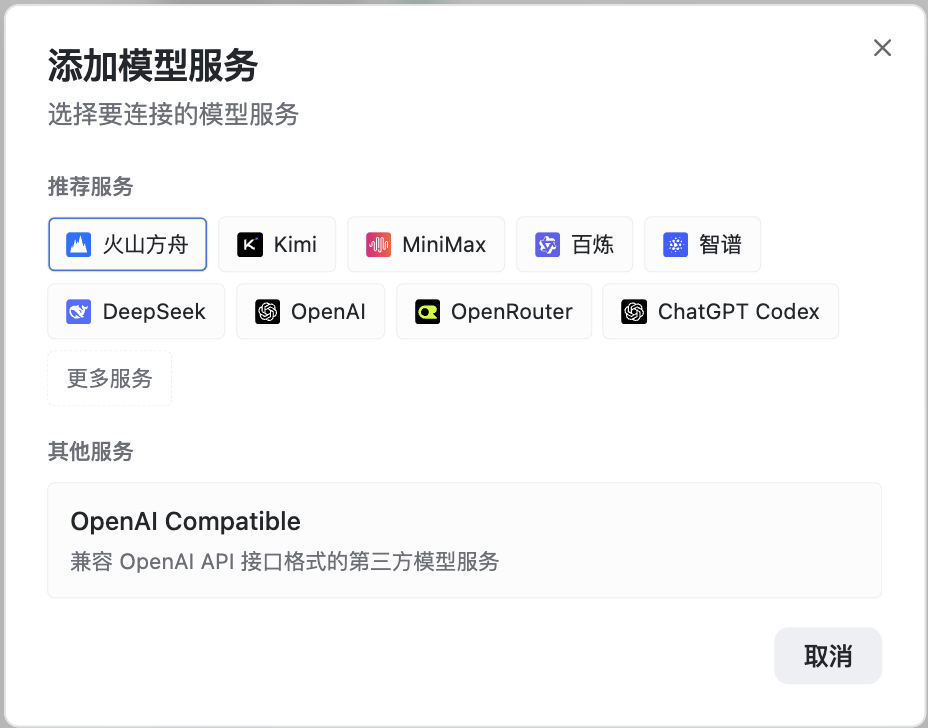
Figure 1 | In “Model configuration,” click “+ Add model service” and choose a provider first.
Choose the connection type: subscription or usage-based API
Many providers offer both monthly subscriptions and pay-per-use APIs. The two key types are usually not interchangeable. Using the wrong type results in a confusing authentication failure.
| What you have | Choose in TabTin | Charged against |
|---|---|---|
| Kimi Code, MiniMax Token Plan, Volcengine Coding Plan, and similar subscriptions Coding subscription | Bring your own model → Subscription | Your provider subscription allowance |
| Moonshot pay-as-you-go, Doubao pay-as-you-go, OpenAI API, and similar accounts Usage-based API account | Bring your own model → Usage-based API | Your provider API balance |
| Included with a ChatGPT subscription: Codex | Subscription → ChatGPT Codex → Sign in with ChatGPT | Your ChatGPT account |
After connecting, select that model in a conversation. Its label shows “Your key · No credits charged”, meaning the conversation uses your provider allowance without charging the TabTin organization wallet.
Note: features such as email AI, memory, and voice may still use TabTin models and organization credits. If BYOK fails, TabTin does not silently fall back to a platform model; you must resolve it yourself. See the note at the bottom of the connection page.
General connection flow
If you have a Coding subscription (the most common path)
- Model configuration → Bring your own model → click Subscription and then Connect now
- Choose your provider (Kimi, MiniMax, Volcengine, and others)
- Choose Who can use it:
- Organization — everyone on the team can select it in conversations (only the organization owner can configure this)
- Personal — visible only to you (the only option for ordinary members)
- Paste the key from the provider's console: API Key
- After submission, TabTin fills in the endpoint and common models. The provider appears under Connected providers there
- Open any Agent conversation and use Model selector to select the connected model and start chatting
If you use a pay-as-you-go API
- Bring your own model → Usage-based API → Connect now
- Choose the provider and enter API Key (the official endpoint is the default, or use your own gateway)
- The remaining steps are the same
If the provider is not listed
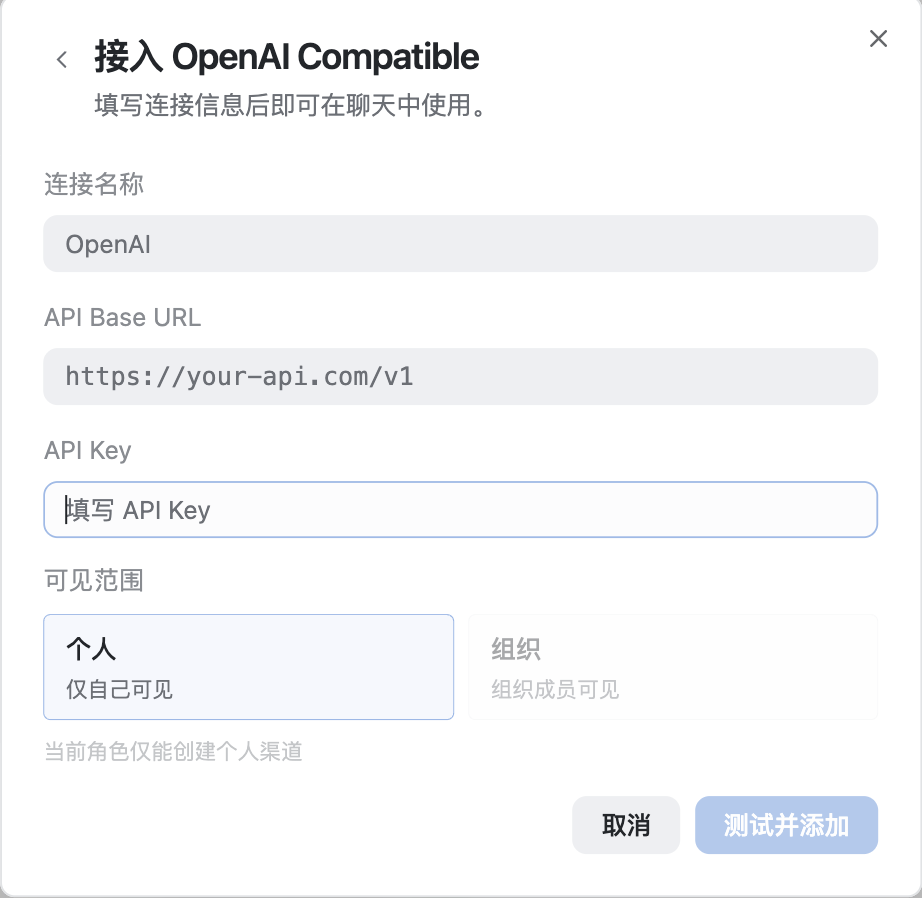
Choose Usage-based API → Custom API key. Enter the Base URL and model name yourself. This works with OpenAI-compatible gateways.
Figure 2 | Custom OpenAI Compatible connection: enter a connection name, Base URL, and API key.
Provider-specific setup
Kimi (Moonshot AI)
Kimi Code / Coding subscription
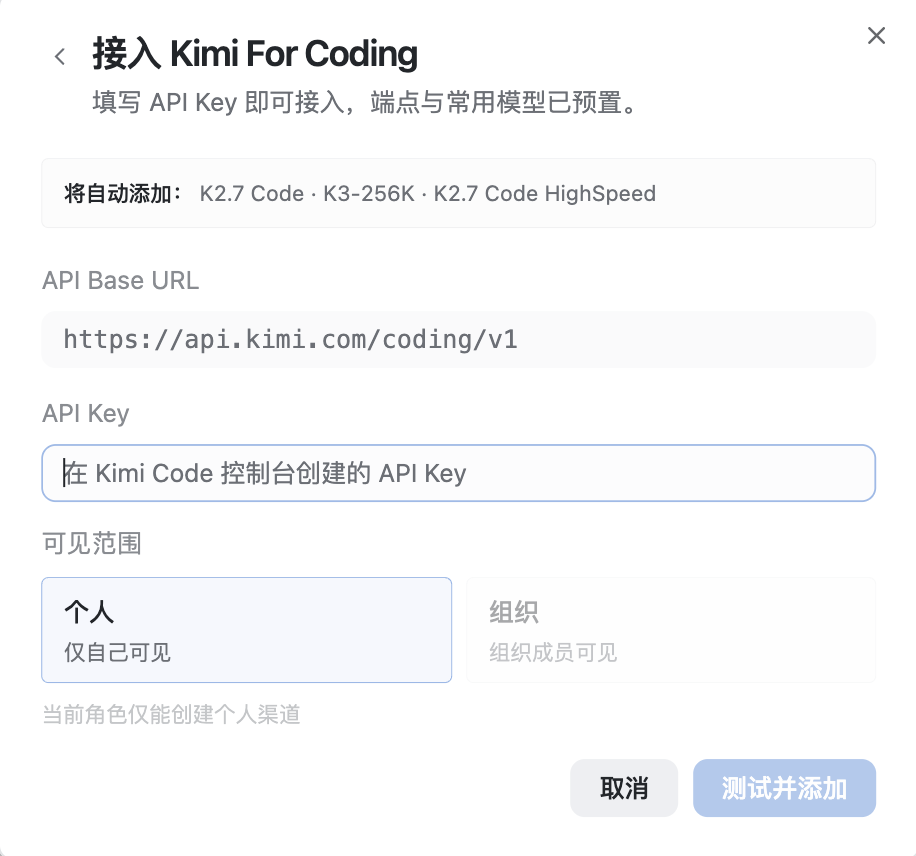
- Subscription → Kimi For Coding
- Open the Kimi Code console create a key, and paste it into TabTin
- TabTin configures the endpoint and models such as K2.7 Code and K3-256K automatically
Figure 3 | The Kimi For Coding form prepopulates the Coding endpoint and commonly used models.
Moonshot usage-based API
- Usage-based API → Kimi
- Enter the Moonshot usage-based key
⚠️ Subscription and usage-based keys are different; do not mix them.
Doubao / Volcengine Ark
Volcengine Ark Coding Plan (recommended)
- Subscription → Volcengine Ark Coding Plan
- Create a key in the Volcengine Ark console
- TabTin uses the Coding-specific endpoint already configured on the card. Do not replace it with the general endpoint, which may not connect
- Models such as Doubao Seed 2.0 Code are added automatically
Usage-based API
- Usage-based API → Doubao; enter your key
No key
Under TabTin models , select a Doubao model directly. It uses organization credits and may include promotional allowance.
MiniMax
MiniMax Token Plan (subscription)
- Subscription → MiniMax Token Plan
- Create a key under Account management / Token Plan in the MiniMax console (often begins with
sk-cp-) - Models such as M3 and M2.7 are added automatically
MiniMax pay as you go
- Usage-based API → MiniMax
- Enter a usage-based key (it is not the same as Token Plan)
ChatGPT Codex
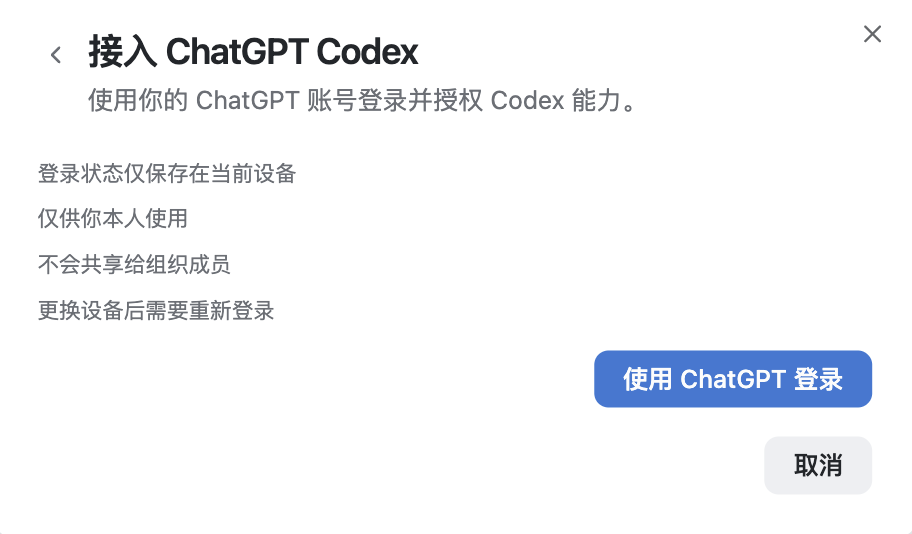
Codex No key is required; sign in with a ChatGPT account instead.
- Subscription → ChatGPT Codex
- Click Sign in with ChatGPT and complete authorization in the browser
- After success, Codex appears in the model list on this device on this device
Notes:
- Login information The sign-in exists only on this computer and is not uploaded to TabTin servers
- You must sign in again on another computer
- Some builds may not yet show Codex, which means this interface is not enabled in your build
If a conversation says “Sign in to ChatGPT Codex,” return to Model settings → ChatGPT Codex and sign in again.
OpenAI A usage-based API is a separate path. Under Usage-based API → OpenAI enter an API key. This is unrelated to Codex sign-in.
Figure 4 | ChatGPT Codex requires no API key; sign in with your ChatGPT account and authorize access.
Other Coding subscriptions
| Provider | Entry point | Tip |
|---|---|---|
| Model Studio Coding Plan | Subscription → Model Studio | Subscription keys often begin with sk-sp- at the beginning |
| GLM Coding Plan | Subscription → GLM | Zhipu Coding-specific key and endpoint |
Every provider card includes View official docs. Follow the provider's latest documentation.
How to use a connected model
- Open an Agent conversation
- Click Model selector
- Find the provider you connected and select its model
- Confirm that “Your key · No credits charged” appears, then start chatting
If you are the organization owner, you can also use Default model settings to choose a team default. Members use it whenever they have not selected another model.
Who can configure what
| Action | organization owner | Member |
|---|---|---|
| View model settings | ✅ | ✅ |
| Configure organization-wide bring-your-own model (available to everyone) | ✅ | ❌ |
| Configure Personal bring-your-own model (only you) | ✅ | ✅ |
| Change or delete organization-wide settings | ✅ | ❌ |
| Set the organization default model | ✅ | ❌ |
| Buy plans or add balance | ✅ | ❌ |
Members create a personal connection, which teammates cannot see. To share a model with the team, ask the owner to connect it with Organization visibility.
FAQ
Connection failed with a key or permission error
- Does the key type match the connection type? Do not use a subscription key for usage-based API access or vice versa
- Has the subscription expired? Is the model enabled in the provider console?
- Does the Coding Plan use the Coding-specific endpoint?
The conversation reports an invalid key, insufficient balance, or rate limit
- Invalid key — create a new key in the provider console, then update it in TabTin Connected providers in its settings
- Insufficient balance — add balance with Kimi, Volcengine, MiniMax, or the relevant provider
- Rate limited — wait and retry, or choose another tier from the same provider
Why can't teammates see the model I configured?
- You may have selected Personal Personal visibility
- or you may not be the owner and therefore cannot create organization-wide settings. Ask the owner to reconnect it with Organization visibility
Why are organization credits charged when I bring my own model?
- Confirm that the conversation has actually selected your connected model; look for “Your key · No credits charged”
- Some non-conversation features, including email AI, still use platform models
Do I still need a TabTin plan if I bring my own model?
Conversations using your model do not charge the organization wallet, but seats, doc and table quotas, and some AI features still depend on the organization plan. Check Organization settings → Subscriptions & billing for details.
Still stuck?
Take a screenshot of the error and send it to contact@larchiveai.com. We will help you diagnose it. You can use the same email for payment and credit questions, or ask your contact in the beta group.