Apps and Skills · 6 min read · Updated 2026-09-08
Configure skills for different AI personas
Assign skills by writing and data roles, then choose the right persona for each task.
Feature overview
The same Skill can serve multiple AI personas or only those handling certain work. For example, let a writing persona organize minutes and reports, and a data persona analyze tables, making it easier to choose the right assistant.
This guide uses that division to demonstrate skill scope, saved configuration, and task invocation. An AI persona is XiaoTin or another assistant selected at the input box’s bottom left; a Skill is a working method it can use. Roles and materials are examples, and your persona names may differ.
How to use it
1. Decide which skills to share
Assign by work type; every persona does not need every skill. Use this arrangement as a reference, based on skills actually available in your list.
| Working method | Suggested personas | Suitable tasks |
|---|---|---|
| Weekly meeting minutes and report materials | Writing persona | Turn meeting records into minutes or report outlines |
| Spreadsheet analysis | Data persona | Summarize registration counts, check expenses, compare categories |
| A shared team result-checking method | Multiple personas that actually need it | Check sources, missing information, and output format |
If the corresponding persona does not exist, first open in the main navigation: AI persona and use New AI persona to create one, then return to skill configuration. Use existing personas if available; this guide does not require another set.
2. Open the skill list and check suitability
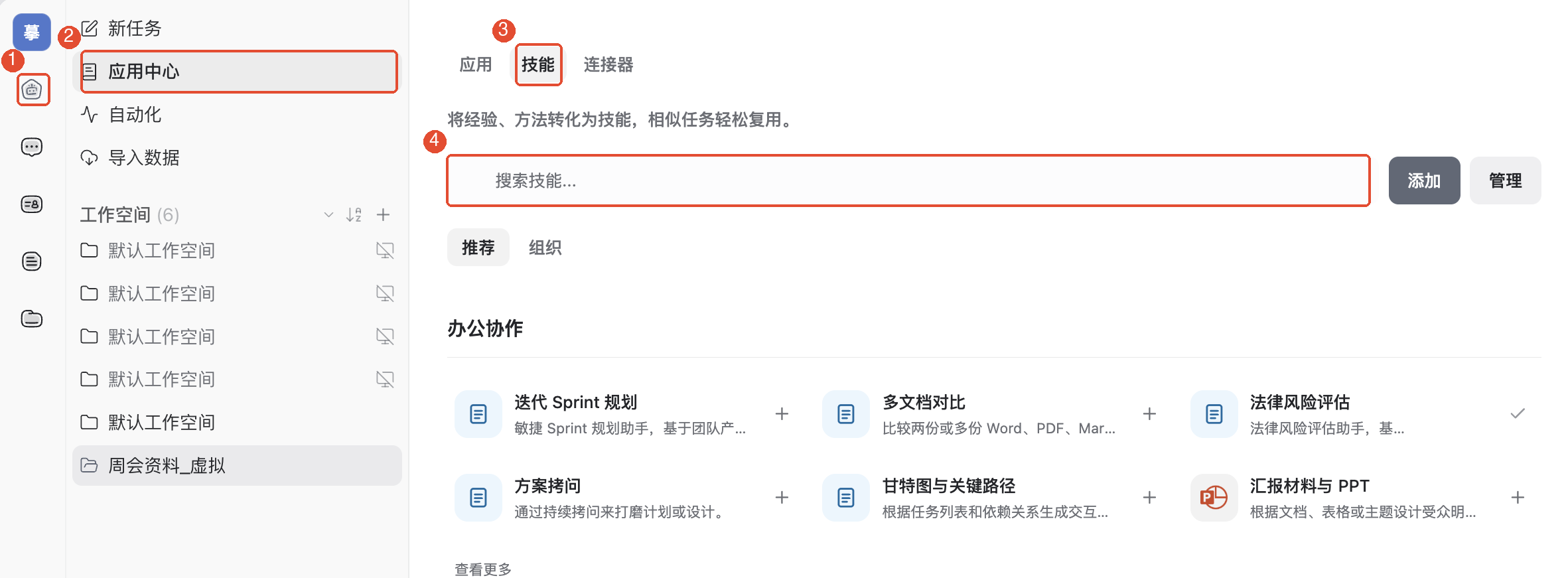
In the main navigation on the left, click Tasks → App Center and select the top Skills tab. This example searches “report” to find Report materials and PPT.
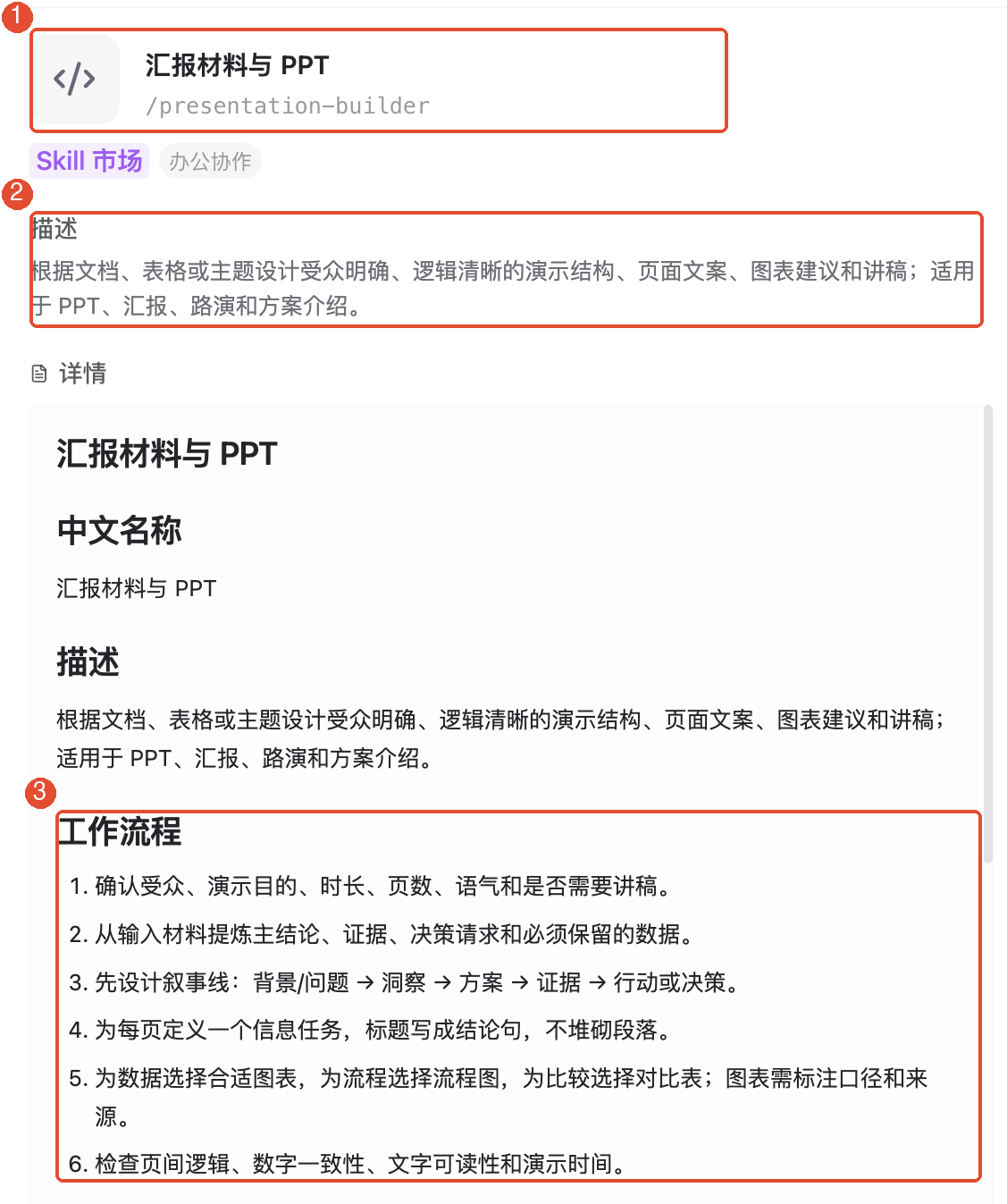
Click the skill name to read its purpose and required inputs. Close details once confirmed, return to the list, and click the skill’s right-side + to open Configure skill.
3. Assign it to the writing persona and save
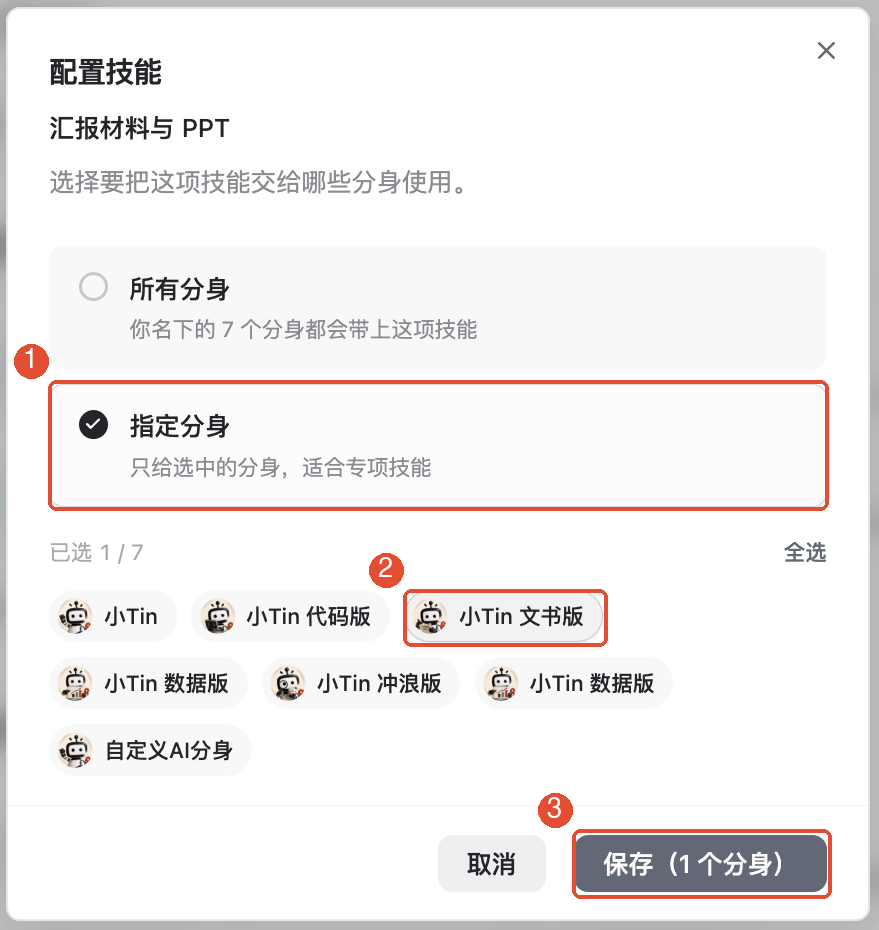
In Configure skill, choose Specific personas. If everything is selected, first click Deselect all, then select XiaoTin Writer. Check Selected shows 1 and click Save (1 persona).
Use the same method for a spreadsheet analysis skill and the data persona: find an available skill, read its description, select the data persona, and save.
For shared use, under Specific personas select several personas. To use all personas listed in the window, choose All personas. Check selected names and counts before each save.
4. Select the configured persona when starting a task
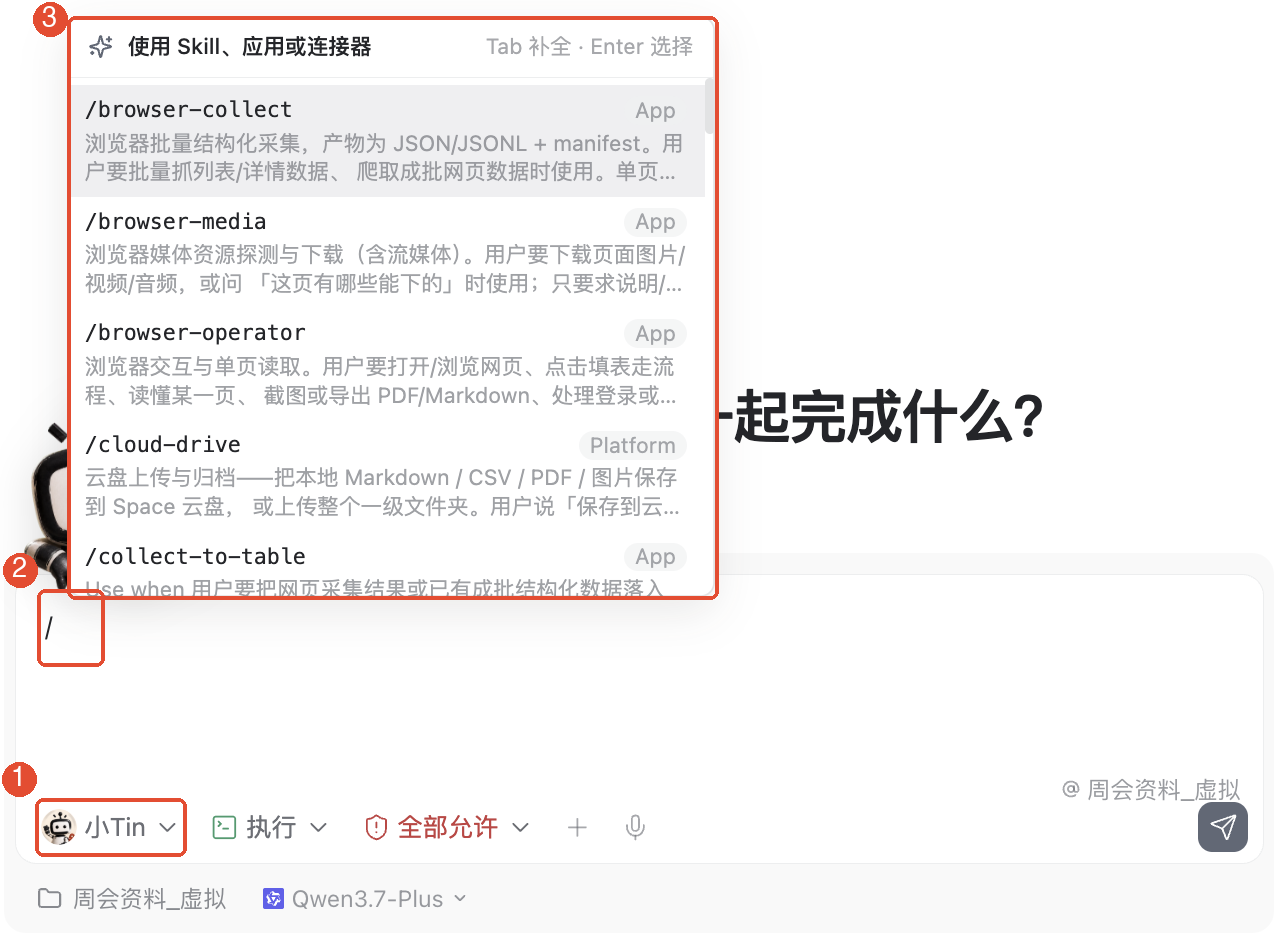
Click New task, click the persona name at the input box’s bottom left, and choose XiaoTin Writer. In the input box, type /, then enter presentation and choose from the candidates: Report materials and PPT.
After selecting the skill, provide current materials and requirements. For example:
The registration page is complete with 120 registrations. Poster dimensions still need confirmation. Next week Lin will organize the registration list and Chen will follow up on the poster; deadlines are pending confirmation. Create a three-slide weekly meeting report outline: progress, unresolved issues, and next week’s actions. Do not invent dates absent from the source.
Check persona, skill, and materials, then send. Verify all three sections, the accurate 120 count, and Pending confirmation for missing dates.
5. Switch to the data persona for data tasks
Create another task, switch to the data persona with its analysis skill, select that skill, and provide data. For example:
Fictional registrations: 80 online and 40 on site. Calculate the total and each channel’s share, showing the calculations. Use only these two figures.
The total should be 120, with shares of approximately 66.7% and 33.3%. These are checking answers, not proof of successful skill execution in your client.
Assigning skills does not create an automatic handoff between personas. To have the writing persona report on analysis, provide verified data results in its task and specify the report format.
Other common features
Check added skills
Under App Center → Manage → Skills to view existing skills. If one is missing in a task, check its configured scope and save status, then the task’s current persona.
Start with a small scope
Test with one persona first, then expand as needed. Share general methods; provide each task’s materials and requirements separately.
Things to keep in mind
- Persona names help identify roles, but verify actual skill configuration rather than relying on names such as Writer or Data.
- Configuring a skill neither supplies files nor grants file or external-service access.
- Do not assume newly created personas inherit existing configuration. Recheck usage scope after creation.
- Selecting a skill does not start work. Provide materials, describe the goal, and send to begin.
FAQ
Can writing and data personas use the same skill?
Select several under Specific personas, verify, and save. Whether sharing makes sense depends on whether the method suits both kinds of tasks.
Why can I not find it with / after configuration?
Check successful saving and the correct task persona, then type the skill name or invocation identifier to narrow candidates.
Does choosing the writing persona automatically tell it I want a weekly report?
You still need to specify the goal and provide materials. With several skills available, explicitly selecting one helps verify the intended method.
Can the writing persona directly continue the data persona’s work?
The configuration in this guide does not automatically transfer prior task results. Provide verified results to the writing task and explain the next step.