Models & AI · 8 min read · Updated 2026-09-02
How do models differ, and which tasks suit each one?
Choose by context window, thinking depth, and tool capabilities. Complex development, long documents, image analysis, and everyday questions have different model needs.
Bigger is not always better. First determine whether your task needs a long context, deep thinking, image understanding, or tool calls. Model lists and capability notes change with versions; this guide reflects checks in the current client.
The key points
- For a short question or a few copy edits, start with a lightweight, fast model.
- For long documents, complex development, or multistep tasks, prioritize a long context and deeper thinking.
- For search, opening documents, spreadsheets, or browser use, first confirm support for tool calls.
- A “Chat only” model can chat, summarize, and rewrite, but the current client will not call search, spreadsheet, or other tools with it.
Start with the task
| What you want to do | What to try first | What to check |
|---|---|---|
| Everyday questions, rewriting, summaries | DeepSeek-V4-flash、Doubao Seed 2.0 Lite | Response speed and whether tools are needed |
| Complex development, code migration, long workflows | GLM-5.2、DeepSeek-V4-pro、Kimi K3 | Context window, thinking depth, tool calls |
| Coding tasks | Kimi K2.7 Code、GLM-5.2、DeepSeek-V4-pro、Doubao Seed Evolving | Tool support and context length |
| Images or other multimodal content | Kimi K3、Kimi K2.7 Code、Doubao Seed 2.0 Lite | Multimodal capabilities and whether tools are needed |
| Chatting, summarizing, and rewriting only | MiniMax-M3、MiniMax M3 (1M) | “Chat only” label; cannot call tools |
| High concurrency or a tight budget | DeepSeek-V4-flash | Lightweight model speed and cost notes; actual charges depend on your plan or upstream service |
The table is a starting point based on current client capability notes, not a permanent ranking. Model names, capabilities, and prices may change. Check the model picker’s current information before choosing.
Check three capabilities on the model card
Context window
The context window determines how much content fits into a conversation. 1M suits large codebases, long documents, and lengthy meeting notes; 262K or 256K suits medium-length tasks; 200K is enough for ordinary questions, depending on their length. A longer context does not guarantee better answers; more content also needs clearer instructions.
Thinking depth
The model picker shows options such as “Off,” “Standard,” and “Deep.” Start with Off or Standard for ordinary questions; increase to Deep for complex reasoning, code migration, or long workflows. Deeper thinking usually takes longer and may consume more upstream quota.
Tool calls
For search, opening documents, spreadsheets, or browser use, select a model that supports tool calls. “Chat only” models are explicitly labeled, and their details on the right do not show tool capabilities. This is a limitation of that model service, not a malfunction.
What the current models are suited for
Platform models: ready to use
TabTin provides platform model services; you do not need to enter an API address or key separately. The current client groups them under “Volcano Engine” and “Moonshot”:
- GLM-5.2: suitable for complex development, long-context understanding, and long-running tasks. Its model card lists a 1M context and more flexible thinking intensity.
- DeepSeek-V4-pro: suitable for production Agents, complex coding, and tasks needing long context. Its card lists 1.6T total parameters, 49B active parameters, and a 1M context.
- DeepSeek-V4-flash: suitable for everyday tasks with high concurrency and cost constraints. Its card describes a lightweight version with a 1M context.
- Doubao Seed Evolving: suitable for Coding, Agent, and productivity use cases. It uses a unified model ID and its capabilities continually evolve.
- Doubao Seed 2.0 Lite: suitable for everyday questions, light analysis, and medium-sized tasks needing images or tools. Its card lists a 256K context, multimodal capabilities, and tools.
- Kimi K3: suitable for long documents, complex reasoning, and multimodal tasks. Its card lists a 1M context, always-on reasoning, and thinking depth controls.
- Kimi K2.7 Code: suitable for coding tasks. Its card lists a 262K context, multimodal capabilities, tools, and reasoning.
- Kimi K2.6 / K2.5: suitable for general questions, analysis, and coding with medium-to-long context. Its card lists a 262K context, multimodal capabilities, tools, and reasoning.
Organization BYOK: use model services connected by your organization
“Organization BYOK” identifies model services connected by an organization administrator. The MiniMax models in the current client example are labeled “Chat only”:
- MiniMax-M3: a 200K context window, suitable for chatting, summarizing, rewriting, and other tasks that do not need tools.
- MiniMax M3 (1M): its name includes 1M, but the current client still labels it “Chat only.” Check the window shown on the right after selection for the actual context. The name does not imply search, spreadsheet, or browser tool support.
Available BYOK models, context, and billing depend on organization configuration and the upstream service. If a model is missing, ask your administrator whether the service is connected and still has quota.
View and switch models within a task
1. Open the model picker
After creating a task, click the current model name below the input box. Models are grouped by platform and Organization BYOK. Select one to see its capabilities on the right.
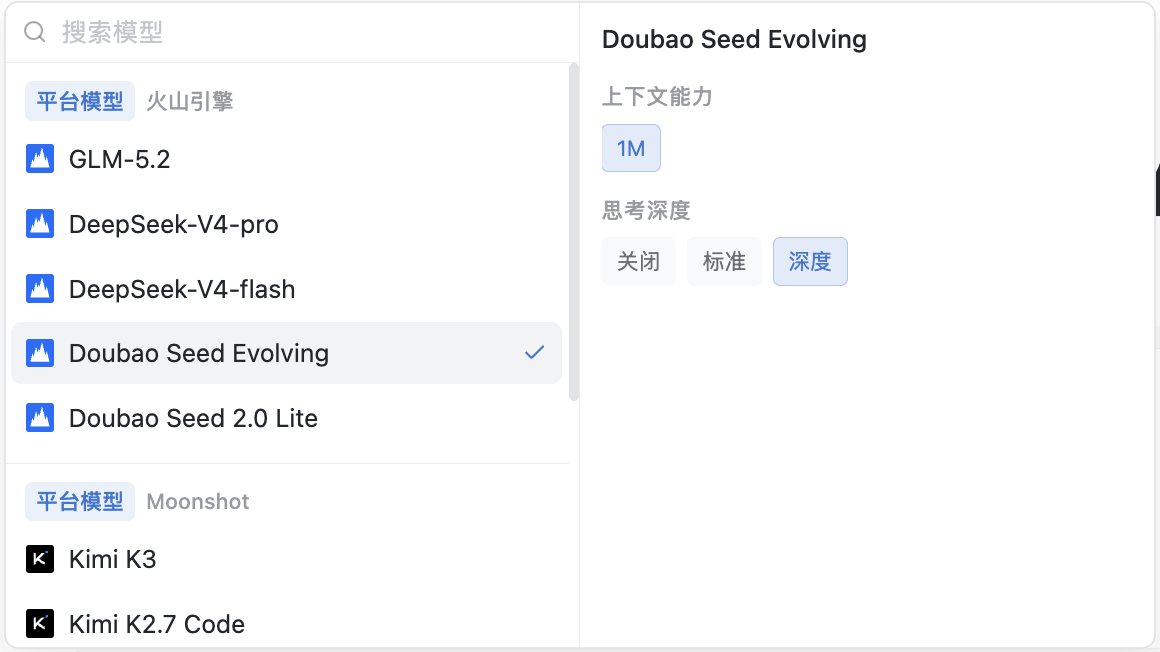
Figure 1 · The model picker shows platform groups, Organization BYOK, “Context window,” and “Thinking depth.”
2. Check long context and thinking depth
Select Kimi K3, GLM-5.2, or another model and check “Context capabilities” and “Thinking depth” on the right. For long materials, prioritize the context window; for complex reasoning, choose deeper thinking.
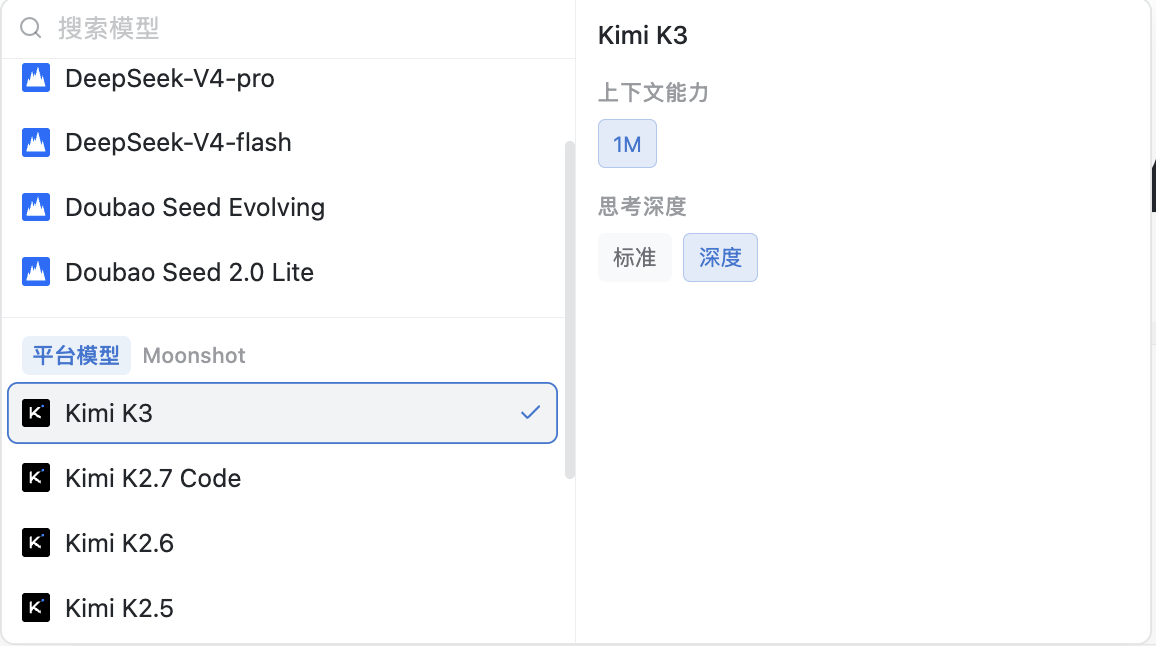
Figure 2 · Kimi K3 currently shows a 1M context and two thinking depths: “Standard” and “Deep.”
3. Identify chat-only models
Organization BYOK models may show a “Chat only” label. MiniMax-M3 and MiniMax M3 (1M) in the current client are both this type. They suit text tasks, not tasks requiring search, spreadsheets, or a browser.
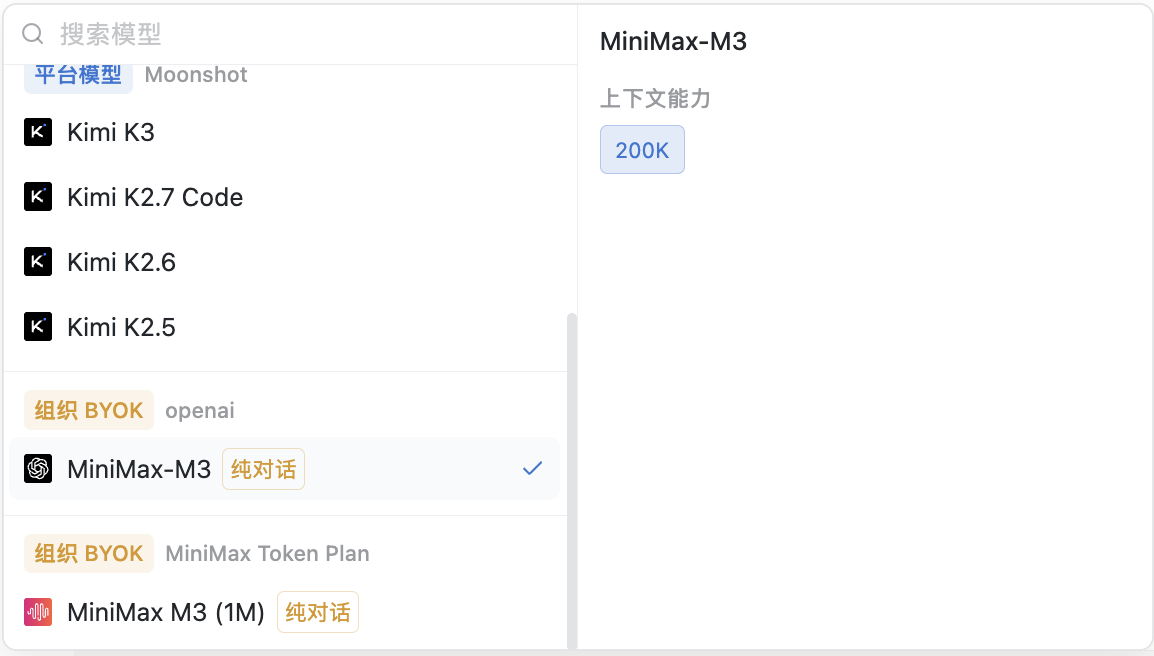
Figure 3 · The MiniMax model has a “Chat only” label, while its context window still appears on the right.
Common troubleshooting
The model can chat but cannot search or use spreadsheets
Check for “Chat only” beside the model name, then switch to a platform model with tool support. Switching does not remove messages already sent, but the next round uses the new model’s capabilities.
The model I want is missing from the list
First confirm the correct organization, then check whether its administrator has connected the service. Platform models are provided by the current TabTin version; Organization BYOK models are configured by the organization. Individuals cannot make an unconnected model appear in the list themselves.
How do I choose between 1M, 262K, and 200K?
Estimate the total length of your input. Short questions do not need 1M. Prefer 1M for large codebases, long documents, or repeated analysis of materials; 256K or 262K is usually enough for medium-sized tasks. If tasks are often truncated, use a larger context or split them up.
Why does the same model’s speed or quality change?
Model services are updated, and organization plans may change rate limits, quotas, or default thinking depth. If performance varies, check the picker’s current capability notes and compare two models using identical input. Do not judge from a single answer.
Still stuck?
Send TabTin support the full model name, its group (Platform models or Organization BYOK), whether the task needs tools, when the issue occurred, and the context and thinking depth shown on the right of the model picker. This helps reproduce and diagnose the issue. If it remains unresolved, send a screenshot of the error to contact@larchiveai.com and we can take a look. You can also send payment or credit questions to this email address. If you are in the beta group, contact your liaison directly.