Install & get started · 2 min read · Updated 2026-09-04
Mac installation guide
Download the installer, drag TabTin into Applications, and allow the first launch.
macOS may block TabTin the first time you open it. This is normal and does not mean the installer is faulty. If you downloaded it from the official TabTin site, follow the steps below to choose Open Anyway. You only need to do this once.
Open the installer and drag TabTin to Applications
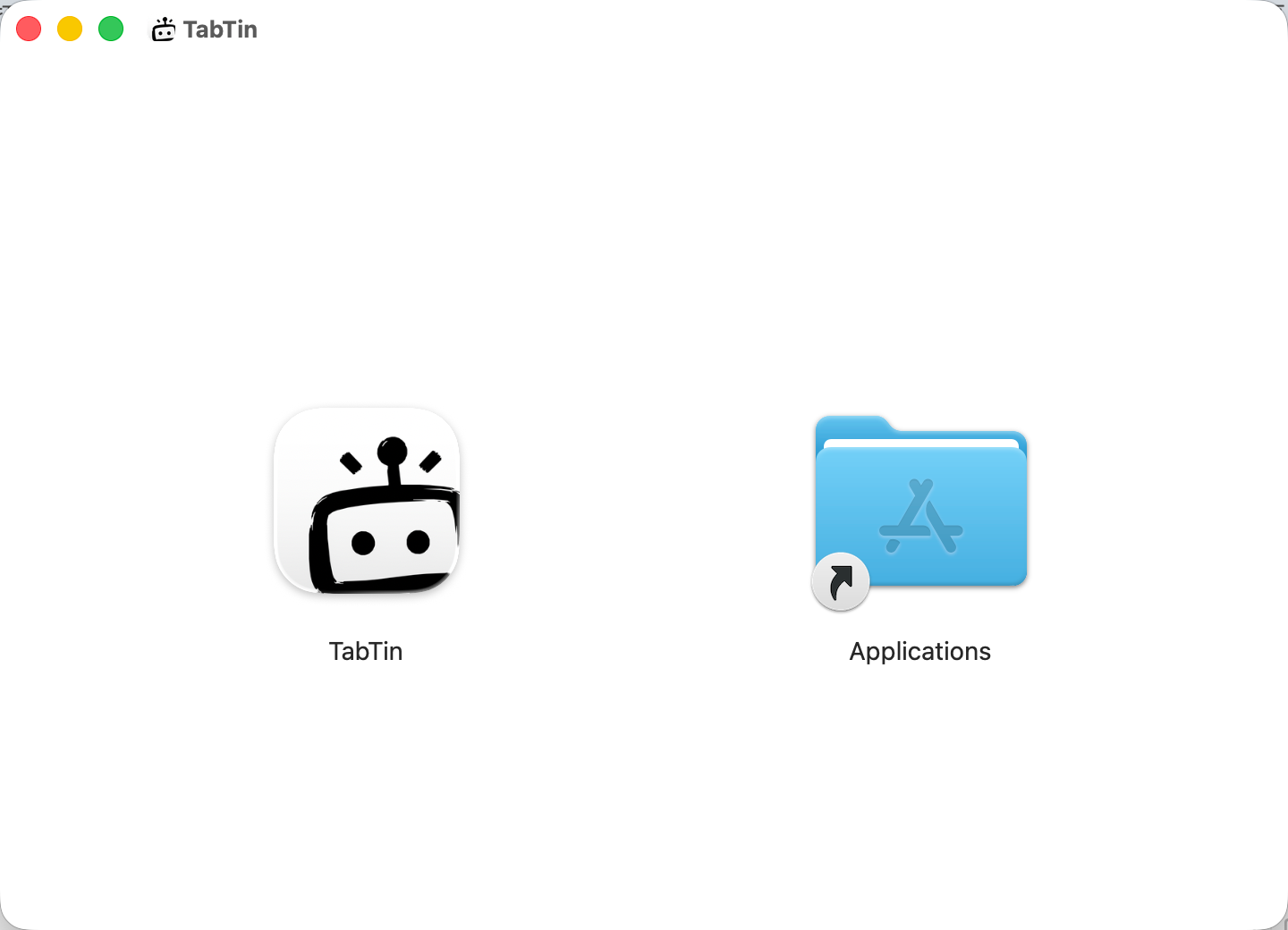
Double-click the downloaded installer and drag the TabTin icon to the Applications folder on the right, just like any other Mac app.
Open TabTin from Applications for the first time
Open Applications and double-click TabTin. If a security warning appears, click Done. You will allow the app in System Settings next.

Choose Open Anyway under Privacy & Security
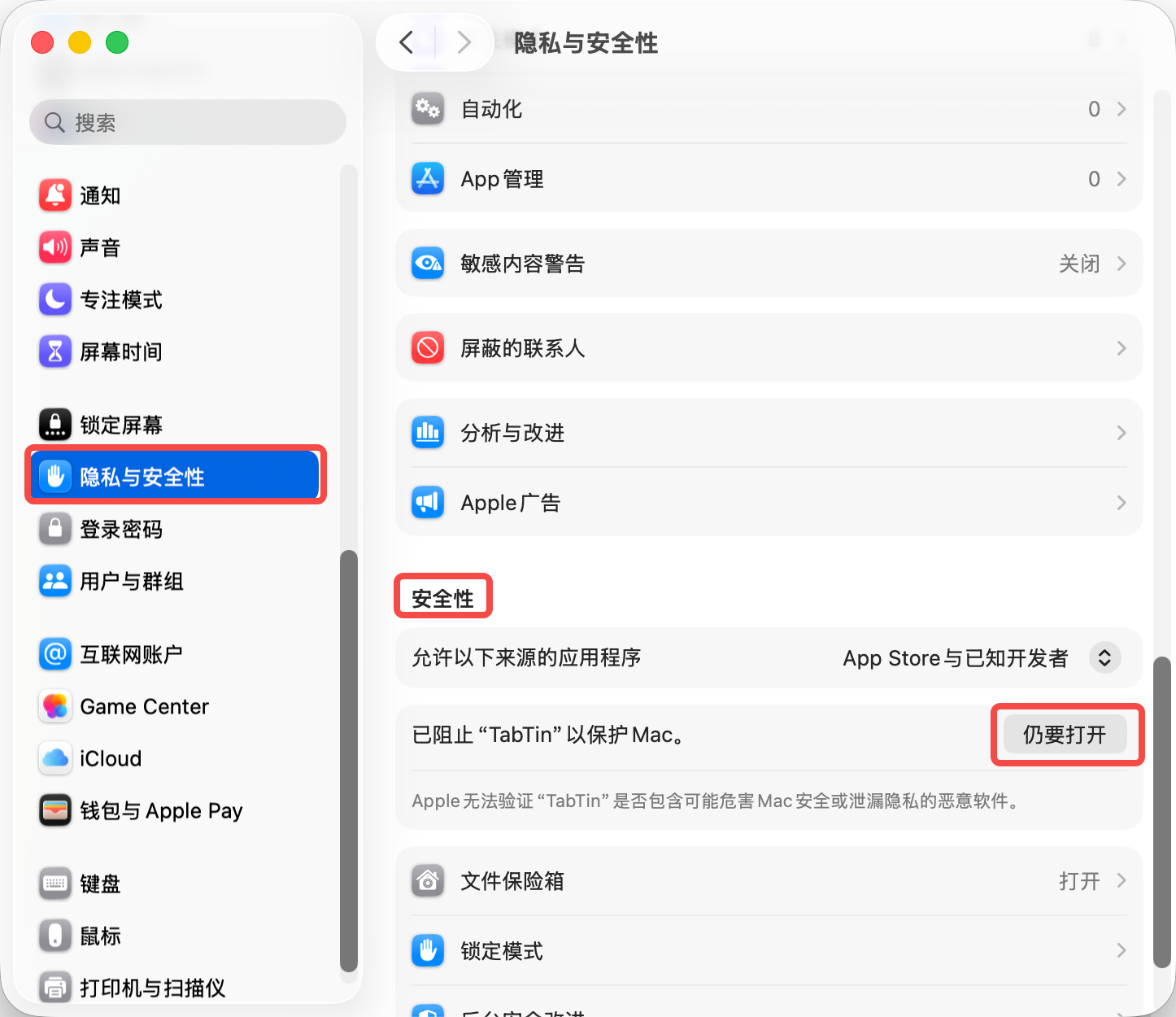
Open System Settings → Privacy & Security, find TabTin under Security, and click Open Anyway.
Confirm once more in the dialog
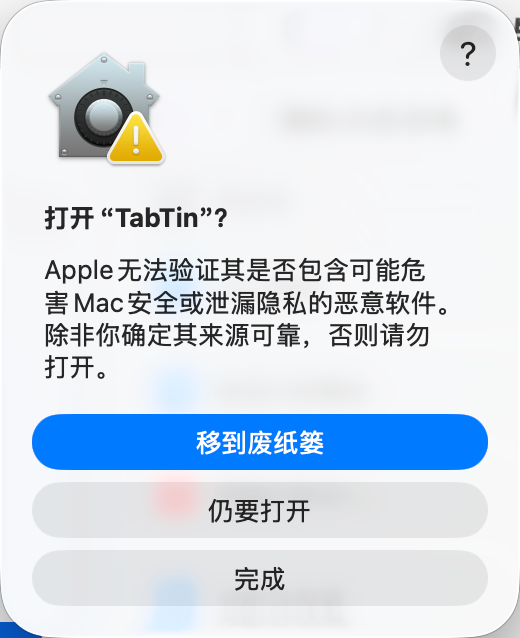
macOS asks once more. Choose Open Anyway.
Enter your Mac password
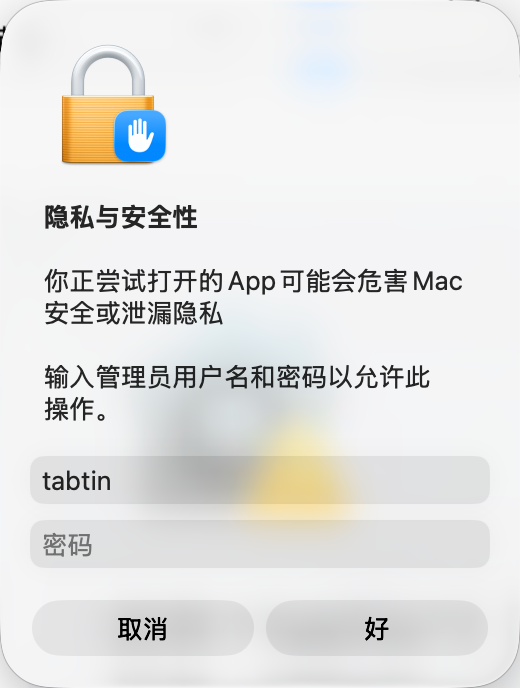
Enter the local administrator password when prompted to authorize the launch.
Done—start using TabTin
TabTin now opens normally. In the future, launch it from Applications or Launchpad without repeating these steps.